This is default featured slide 1 title

Go to Blogger edit html and find these sentences.Now replace these sentences with your own descriptions..

This is default featured slide 2 title

Go to Blogger edit html and find these sentences.Now replace these sentences with your own descriptions..

This is default featured slide 3 title

Go to Blogger edit html and find these sentences.Now replace these sentences with your own descriptions..

This is default featured slide 4 title

Go to Blogger edit html and find these sentences.Now replace these sentences with your own descriptions..

This is default featured slide 5 title

Go to Blogger edit html and find these sentences.Now replace these sentences with your own descriptions..

Showing posts with label Apple 2011. Show all posts

Friday, September 23, 2011

The Apple Thunderbolt Display Review

Ever since I moved to a notebook as my main work computer I've become increasingly annoyed with the process of actually moving my notebook-as-a-desktop around. At my desk I've got DisplayPort, Ethernet, two USB, FireWire 800, speakers and power all plugged into a 15-inch MacBook Pro. What makes it frustrating isn't the first-world-problem of having to unplug seven cables, rather that it doesn't need to be seven cables - Apple could make the whole thing happen with just two.

Every Mac released in 2011 has at least one Thunderbolt port (the iMac has two), and Thunderbolt can deliver exactly what I'm looking for. Thunderbolt can carry two things: PCI Express and DisplayPort, the former for data and the latter obviously for video. Why would you want to carry PCIe and DP over a single cable? To address problems like the one above.


Pretty much all device expansion on modern day PCs happens via PCI Express. Several years ago it was hard to find PCIe sound cards or Ethernet controllers, but these days vanilla PCI slots are nearing extinction and PCIe is the de facto standard. Ethernet, USB and FireWire controllers all exist as single-lane PCIe devices. Put a bunch of them at the other end of a Thunderbolt cable and you no longer need to plug in a bunch of individual cables into your notebook when at your desk. Send DisplayPort over the same cable and you can actually move all of those ports onto your monitor, thereby using a single cable to carry everything but power to your display. And this is exactly what Apple has done with its new Thunderbolt Display. By mating its 27-inch LED Cinema Display with a bunch of integrated IO controllers, Apple is hoping to deliver a display that's more of a mobile docking station than just a passive way to display video.


Apple has tried this in the past. The old Cinema Displays used to feature an Apple Display Connector (ADC) that actually carried DVI, USB and power from a desktop Mac to the monitor. You only needed to plug in a single cable to your display, significantly reducing desktop clutter. Although Thunderbolt does carry power, it's limited to 10W - not enough to power any reasonably sized display. Where Thunderbolt does win out over ADC however is in its universal appeal. Intel created the standard. Although it's used almost exclusively on Apple systems today, come 2012 Intel is expecting PC OEMs to embrace the interface with its Cactus Ridge line of Thunderbolt controllers.

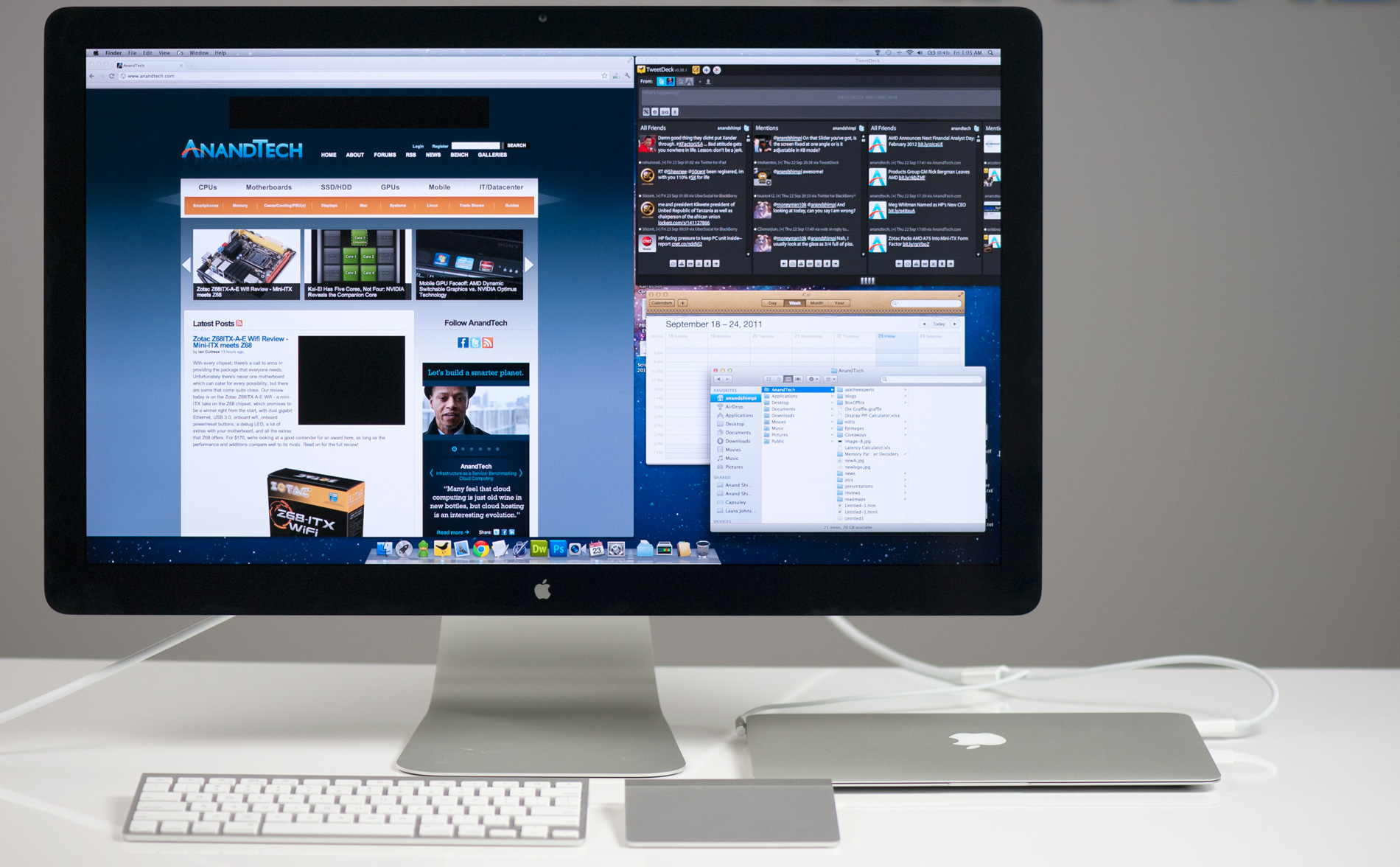
Apple's Thunderbolt Display

The Thunderbolt Display uses a near, if not perfectly, identical panel to what was in last year's 27-inch LED Cinema Display. You get a 27-inch, 16:9, 2560 x 1440 LED backlit display capable of at least 350 nits at full brightness. Apple seems to conservatively spec its desktop displays as we were able to measure 425 nits at max brightness. The uber brightness comes in handy because the display does have a glossy finish. Indoors it's not really a problem unless you're watching a dark movie scene with the display lit by a sun-facing window. Even then, cranking up the brightness all the way is usually enough to overcome any significant glare. As with all glossy displays, if you have light control (e.g. curtains or blinds) you'll be just fine.


The display sits on an aluminum swivel base that allows for -5 degrees to 25 degrees of tilt along the horizontal axis. There's no height adjustment for the display either, only tilt. Personally, I use a height adjustable desk as I find it helps me avoid any carpal tunnel pain. Combined with a height adjustable chair, the lack of height adjustment on the display doesn't bother me. If you have a fixed height desk however, this may be a problem.

Aesthetically the Thunderbolt Display continues Apple's aluminum meets glass design language. The front of the display is all glass, while the edges and back are all aluminum. Along the top surface of the display is a mic for the integrated FaceTime HD camera. The outgoing 27-inch LED Cinema Display (still available for purchase online) sported a 640 x 480 camera, while the Thunderbolt Display ups capture resolution to 1280 x 720.
There's an ambient light sensor hidden in the top bezel of the display, but as always you can disable its functionality from within OS X.


There are two integrated speakers in the display, again unchanged from the previous LED Cinema Display.
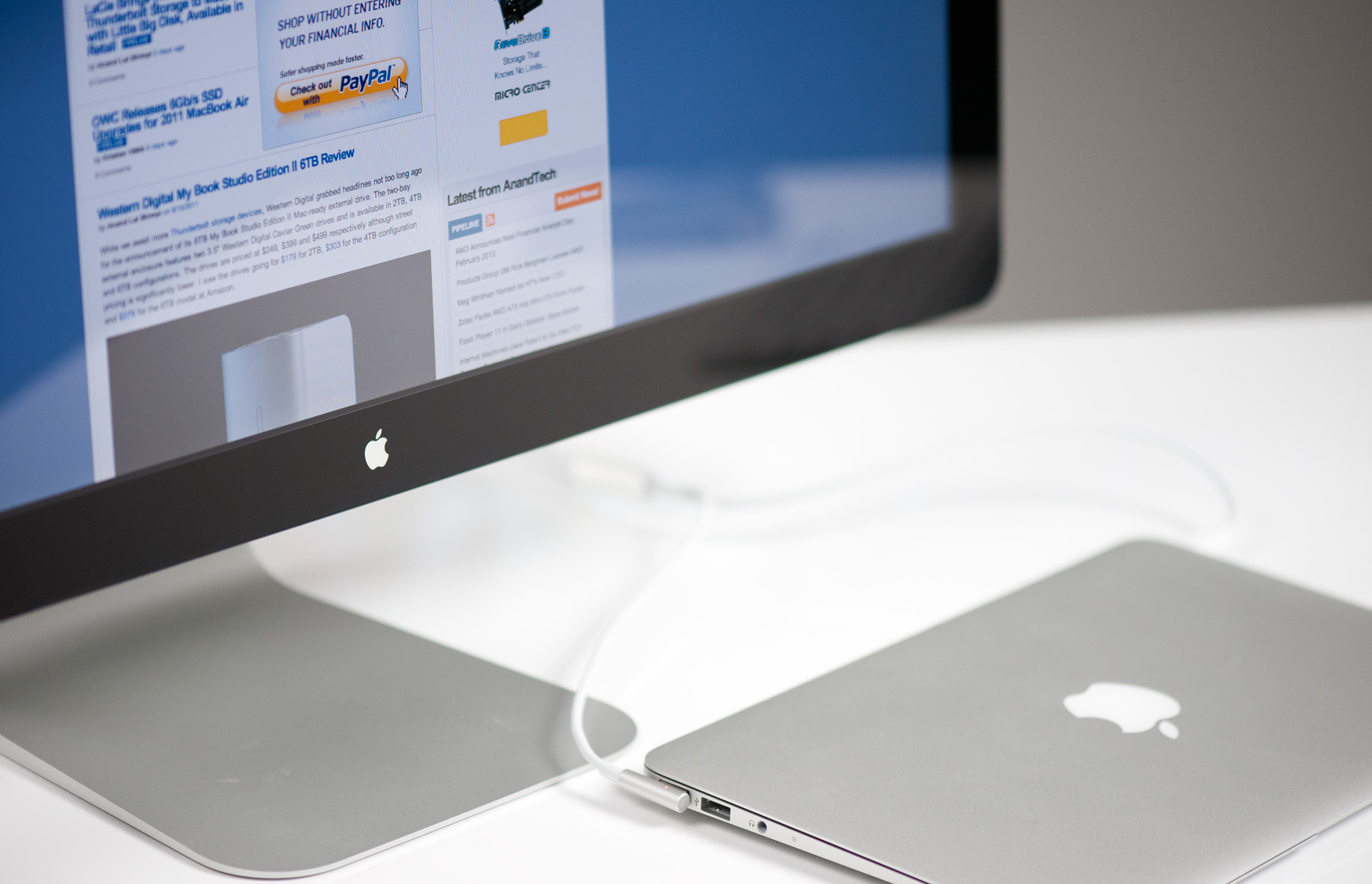
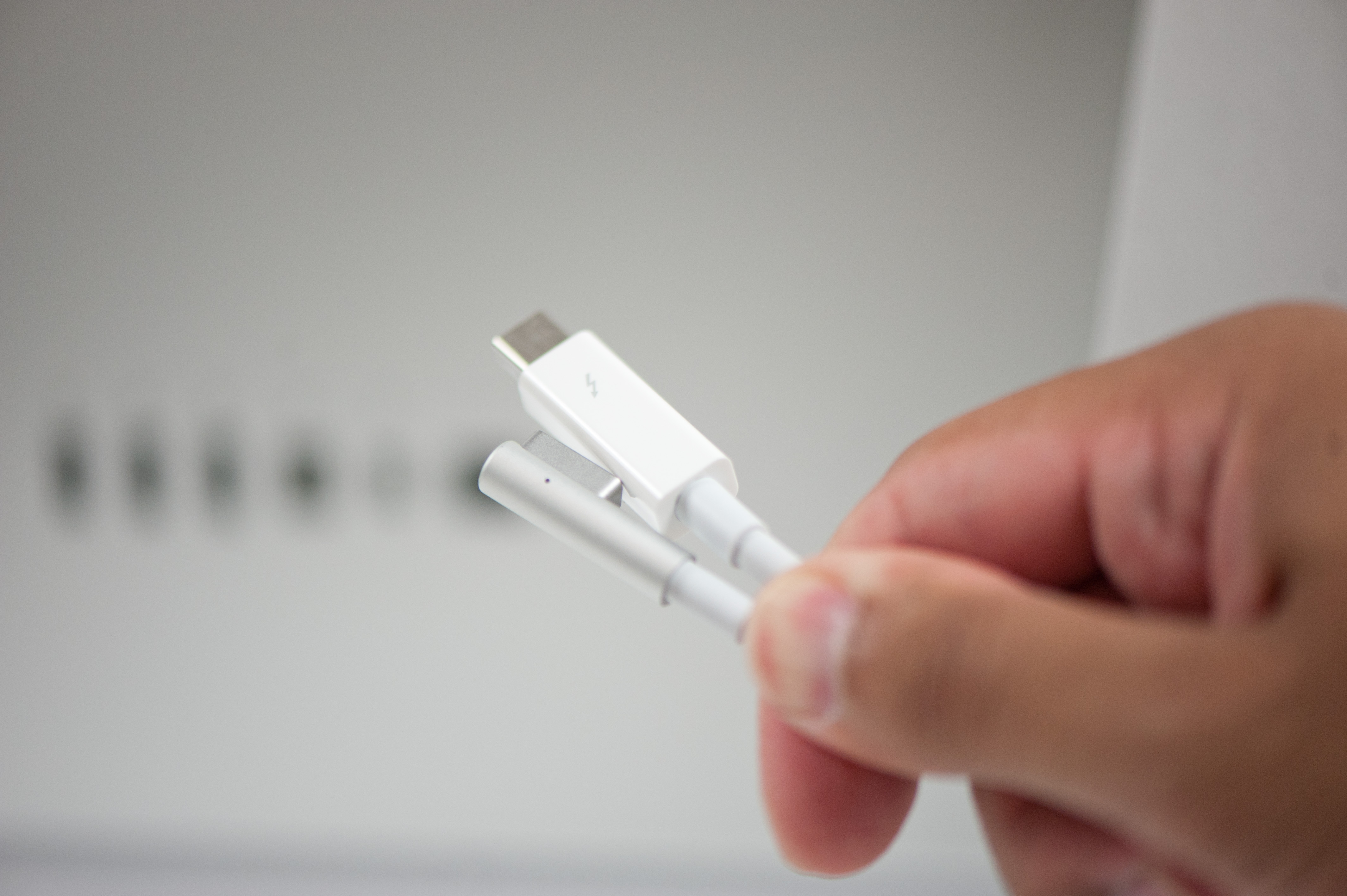
Two cables attach directly to the display: a removable power cable and an integrated IO cable. Cable management is done through a round cutout in the aluminum stand. The IO cable is where things really change with the Thunderbolt Display. Instead of a breakout of three cables as was the case with the Cinema Display, there are now only two: MagSafe and Thunderbolt.


The MagSafe connector remains unchanged. If you've got any Mac that can be charged by an 85W MagSafe adapter, the Thunderbolt Display will charge said Mac. This feature alone is particularly awesome for notebook-as-a-desktop users since it allows you to just keep your actual AC adapter tucked away in your travel bag. For me I keep my MagSafe adapter in my bag and never take it out so I never have to worry about forgetting to pack it. Given how expensive MagSafe adapters are ($79 for an 85W), this is a nice feature for MacBook Air/Pro owners.

The Thunderbolt cable is obviously what gives this new display its name. Inside the Thunderbolt Display is an Intel Eagle Ridge Thunderbolt controller. The type of controller is important as it bestows upon the display some clear limitations. The biggest of course is the lack of support for all non-Thunderbolt systems. That's right, the only way to get video to the Thunderbolt Display is by using a Thunderbolt enabled Mac (or theoretically a Thunderbolt enabled PC). For Mac users that means only 2011 MacBook Pro, Air, iMac or Mac mini models will work with the Thunderbolt Display. Everyone else has to either buy a new Mac or stick with older displays.


I believe the limitation here is actually on the cable side. A Thunderbolt cable can only transmit a Thunderbolt signal. Although DisplayPort is muxed in, if the display on the other end is expecting Thunderbolt and it receives DisplayPort it won't know what to do with it. It's possible Apple could have built in logic to autosense and switch between Thunderbolt and DisplayPort as inputs, but Apple traditionally employs clean breaks rather than long technology transitions. If Apple wants to ensure Thunderbolt gets adopted (at least by its users), this is the way to do it. As we learned from other legacy interfaces (e.g. PS/2, IDE), if you enable backwards compatibility you'll ensure the survival of systems that implement those interfaces. It's not so great for existing customers unfortunately.

Tuesday, June 21, 2011

Apple 27-inch LED Cinema Display Review

Two years ago Apple introduced its first LED backlit Cinema Display. The 24-inch model updated the styling of Apple’s displays to match the unibody MacBook Pro’s ID. It also added features like a built-in MagSafe power supply and mini DisplayPort input, both targeted at owners of new Macs. Unlike most 24-inch displays however, the LED Cinema Display carried an $899 price tag at launch. Even today they are selling for over $600 used. By comparison, Dell will sell you a brand new 24-inch display for $259 or $539 if you want one with an IPS panel. Needless to say, Apple discontinuing the 24-inch LED Cinema Display makes sense. The company is generally uninterested in playing in value segments and I’m not sure there’s a huge market for $900 24-inch displays, regardless of what logo is on the back.

What is a lot more interesting however is the panel used in Apple’s 27-inch iMac. A 16:9 2560 x 1440 LED backlit LCD measuring 27” along the diagonal. Giving you 90% of the resolution of a 30” panel but in a more compact space. If you need more real estate than a standard 1920 x 1200 panel can give you and don’t want to resort to a multi-monitor setup, the 27-inch iMac was very appealing. There’s just one problem: it comes with a built in Mac.

What Apple has done in the 12 months since the release of the 27-inch iMac is separate the Mac from the display, leaving us with a 27-inch LED Cinema Display priced at $999.

Both the 24-inch LED and 30-inch panels are gone, the 27 takes their place in Apple’s display lineup. The new model is really an amalgamation of its predecessors. You get nearly the resolution of the 30-inch Cinema Display with the features of the 24-inch model.


Those features start with the styling. The 27 has a glass front, reminiscent of the unibody MacBook Pro, complete with its overly reflective glory. Unlike the Macbook Pro however, the 27-inch LED Cinema Display will almost exclusively used indoors. Most rooms/offices having some degree of light control (hooray for blinds) and the display is bright enough to make glare from other lights sources a non-issue. The glossy front does pose a problem while watching videos full screen however. If you ever had dreams of being an actor, expect them to be somewhat fulfilled as you find your face in any dark scenes or objects (e.g. black shirt).

The stand is a solid piece of brushed aluminum. You can adjust the tilt of the display but there’s no option to adjust its height. This can be a major problem if you don’t have a height adjustable desk. Apple has a tendency to build very targeted devices, if you don’t fit the target, prepare to be frustrated.

The 27 uses an IPS panel paired with an LED backlight. You lose some color gamut since Apple continues to use white LEDs vs. RGB LEDs, but you gain a more compact package and lower power consumption.
There’s an integrated VGA camera along the top of the screen, once again a feature missing from the old 30 but present in the 24. Along the bottom you have a mesh grill for the integrated 2.1 speakers that come with the display.

Apple 27-inch LED Cinema Display Specifications
Property Quoted Specification
Video Inputs mini DisplayPort
Panel Type IPS, white LED backlight
Pixel Pitch 0.233 mm
Colors 16.7 Million (24 bit)
Brightness 375 nits typical
Contrast Ratio 1,000:1 (typical)
Response Time 12ms
Viewable Size 27" (68.58 cm) diagonal
Resolution 2560 x 1440
Viewing Angle 178 degrees horizontal, 178 degrees vertical
Power Consumption (operation) up to 250W while charging MacBook Pro
Power Consumption (standby) <1 watt
Screen Treatment Glossy
Height-Adjustable No
Tilt Yes
Pivot No
Swivel No
VESA Wall Mounting Yes
Dimensions w/ Base (WxHxD) 25.7" (650 mm) x 19.35" (491 mm) x 8.15" (207 mm)
Weight w/ Stand 23.5 lbs (10.7 kg)
Additional Features 85W MagSafe Power Adapter integrated, 2.1 Speaker System integrated, 3 x USB port hub
Limited Warranty 1 year limited warranty
Accessories Breakout cable with miniDP, USB, MagSafe power, power cable
Price $999
 
Integrated MagSafe Power Adapter

Around back there’s a plug for power and a single cable that carries mini DisplayPort, USB and MagSafe cables within it.


The MagSafe connector can be used to charge any MacBook, MacBook Pro or MacBook Air with a MagSafe connector. It’s a very convenient addition to the display and obviously works very well if you are using the Cinema Display with one of the aforementioned notebooks. If you aren’t however, the short length of the MagSafe power cable is annoying. I’ve got a desktop and a notebook and I wanted to use the power from the Cinema Display to keep my notebook charged while I’m using my dekstop. Unfortunately this meant that I have to keep my charging notebook very close to the display input on my desktop as there’s only 10” of slack on the MagSafe cable (cable to connector, add another 1.5” if you include the connector in the length).

 
Mini DisplayPort, Only

Mini DisplayPort is the only way to get video into this monitor, which pretty much rules out any Mac made before late 2008. Even EVGA’s GeForce GTX 285 Mac Edition lacks a mini-DP port. I was forced to go back to my old GeForce GT 120 in my Nehalem Mac Pro to use the display (which works despite Apple listing it as compatible with only the 24-inch LED Cinema Display). Like many Apple products, if you have the right hardware the combination works flawlessly, if you don’t it’s just frustrating. Atlona is the only company I’m aware of that makes a dual-link DVI to mini-DP adapter. It sells for $149.95 if you desperately want the new Cinema Display and don’t have a video card with mini-DP out. I have yet to try it but customer reviews on Amazon indicate it works with the 27-inch iMac at least.

 
Integrated Audio

With MagSafe and miniDP out of the way we’re left with the USB connector on the cable. The USB connector plays two roles. First and foremost it is to connect the three USB ports on the back of the display to your computer. The second role is to connect the internal USB audio device to your computer as well. Driving the integrated 2.1 speakers is a USB audio device integrated into the monitor (DisplayPort audio is also supported). You get basic driver support for the controller under both OS X and Windows 7.


The integrated speakers sound better than notebook speakers, but worse than a good set of desk speakers. There’s very little bass and the highs can be a bit harsh at loud volumes. Then there’s the issue of where the sound actually comes from. The speakers point downward, a couple of bounces later and it sounds like music comes from behind your display rather than straight at you as is the case with standalone speakers.
The speakers can get loud. At their lowest setting I measured 47dB(A) sitting 2 feet away in my office (40 dB(A) ambient noise), but cranked all the way up the sound meter registered 87dB(A). The issue at high volumes is you really begin to see the limits of the speakers. There’s only so much you can do with speakers integrated into a display after all.

Again the speakers are a definite upgrade from what you’ll find in your MacBook Pro, but if you’re a desktop user with a decent sound setup they will go largely unused. While I used them over the past few days, I definitely missed my Klipsch Promedia 2.1s.
 
Built in iSight, Not Half Bad

Webcams are ubiquitous in Apple's notebook and desktop lineups, the 27 supports the family tradition with its VGA still/video camera complete with green LED to indicate when it's active.


Image quality is surprisingly good even in my not-so-brightly-lit office:


Applications like Photo Booth under OS X can rely on the LED backlit screen as a flash to help. There’s a mic along the top of the display.


I iChatted with Brian Klug and he said the mic sounded good in practice.
Also at the top of of the screen is an ambient light sensor. With the option enabled in software as ambient light increases, the screen’s brightness will decrease and vise versa. For the most part I found the feature worked ok but in my office I often found that the increase/decrease wasn’t significant enough to make a difference as the day turned into night. The sensor was never over active unless I was taking pictures of myself in Photo Booth. The flash before every photo bounced back, hit the light sensor and caused the display to dim significantly. Presumably you won’t be doing that all of the time and if you are, there’s always the option to turn it off.


Like all Apple displays there’s no OSD, everything is done in software. Under OS X this means you need to download the latest update for the 27-inch LED Cinema Display. Under Windows you need to download an update to Boot Camp 3.1. The good news is that the display works under Windows 7, the bad news is you need Boot Camp installed to get brightness control. The downloadable Windows drivers won’t work on a system without Boot Camp installed, in other words, on a normal PC you lose the ability to control brightness. Apple should make the 27-inch Windows control panel a standalone package and not tie it to Boot Camp. It seems as if Apple expects the only users interested in this panel will be those who already own an Intel based Mac. Self fulfilling prophecy much?

Apple Mac Pro (Mid 2010) Review

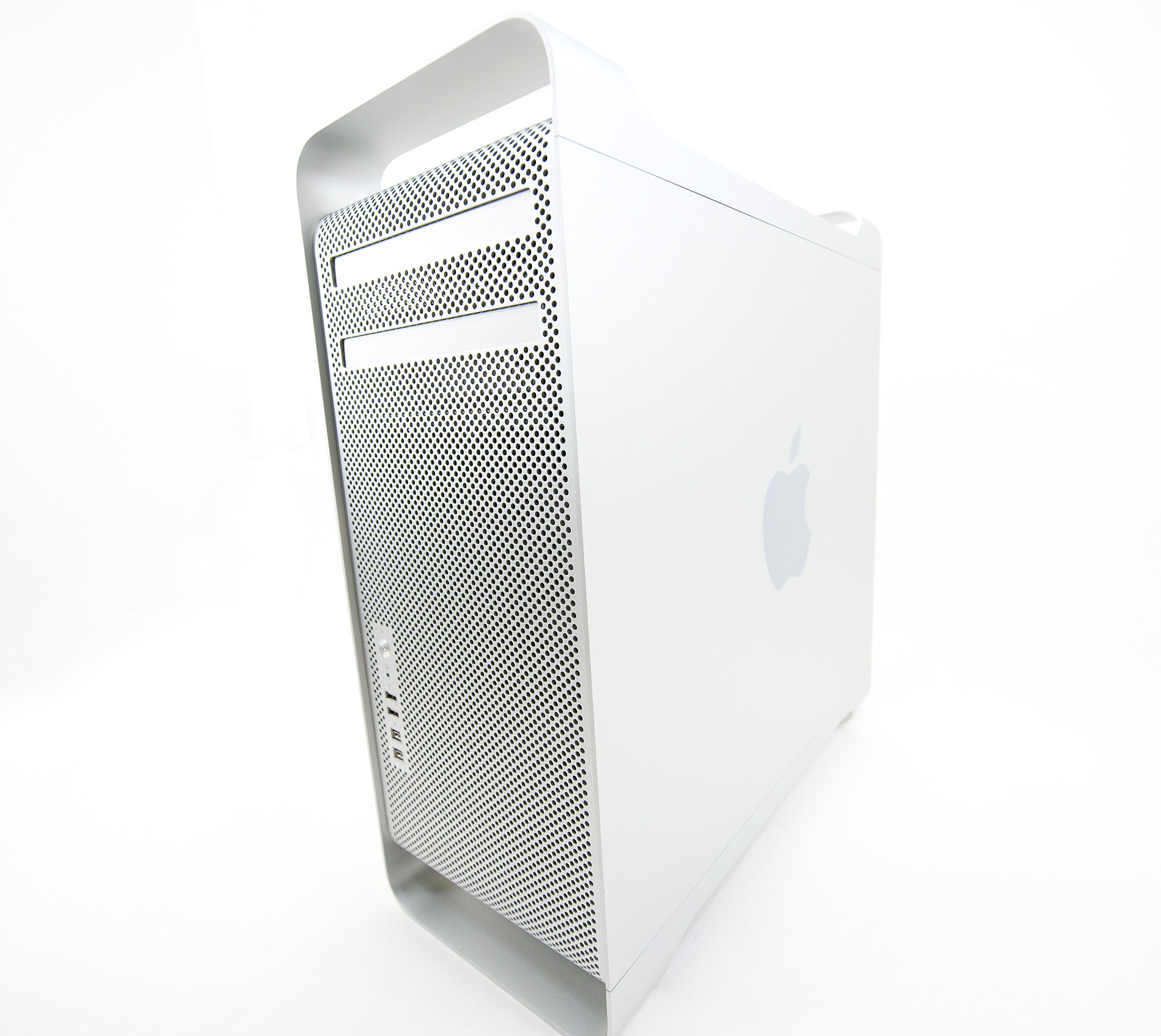
It’s the fastest Mac you can buy and it's a desktop. These days, the Mac Pro is basically the un-Mac.
For years users have argued that Apple needs a standard Mac. A decent desktop that fills the $1000 - $2000 price range. Apple has refused to entertain the idea for what I can only assume are a number of reasons. At lower price points it’s difficult to justify the Apple tax, thus driving margins lower and ultimately impacting stock price. There’s also the issue of cannibalization. A standard Mac could potentially drive customers away from the iMac and into a Mac + cheap monitor configuration. From Apple’s perspective this probably harms the overall user experience (what if a customer buys an inferior display and uses it with a Mac?) and it only allows Apple to realize profit on a computer, not a computer + display.

This leaves us with the current product lineup. The Mac mini at the low end of the OS X scale, the iMac in the middle and the Mac Pro up top. If you want something high performance without an integrated display but more affordable than the Mac Pro then there’s always the Hackintosh route.


I spend all of this time talking about price because the Mac Pro isn’t cheap. Since its introduction in 2006 the Mac Pro lineup starts at $2499:

Historical Look at the Mac Pro
  Late 2006 Early 2008 Early 2009 Mid 2010
CPU 2 x Xeon 5150 (2.66GHz - 2C/2T) 2 x Xeon E5462 (2.8GHz - 4C/4T) 1 x Xeon W3520 (2.66GHz - 4C/8T) 1 x Xeon W3530 (2.8GHz - 4C/8T)
Memory 2 x 512MB DDR2-667 FB-DIMMs 2 x 1GB DDR2-800 3 x 1GB DDR3-1066 3 x 1GB DDR3-1066
Graphics GeForce 7300 GT Radeon HD 2600 XT GeForce GT 120 Radeon HD 5770 1GB
Hard Drive 250GB 320GB 640GB 1TB
Optical 6X DL SuperDrive 8X DL SuperDrive 18X DL SuperDrive 18x DL SuperDrive
Prices $2499 $2799 $2499 $2499

The specs have of course improved tremendously year over year. The Mac Pro was born after Apple decided to migrate to Intel based CPUs. It started with a dual-socket Conroe based Xeon, later saw an upgrade to Clovertown and then in 2009 moved to Nehalem. This summer Apple updated the hardware to Westmere, Intel’s current 32nm architecture.

While there were only two configurations for the Mac Pro (4 and 8 core), Westmere adds a third model: a 12-core Mac Pro priced at $4999. Of course there are build to order options in between all three of them.

Mid-2010 Mac Pro Lineup
  Quad-Core 8-Core 12-Core
CPU 1 x Xeon W3530 (2.8GHz - 4C/8T) 2 x Xeon E5620 (2.4GHz - 4C/8T) 2 x Xeon X5650 (2.66GHz - 6C/12T)
Memory 3 x 1GB DDR3-1066 6GB DDR3-1066 6GB DDR3-1333
Graphics Radeon HD 5770 1GB ATI Radeon HD 5770 1GB ATI Radeon HD 5770 1GB
Hard Drive 1TB 1TB 7200RPM SATA 1TB 7200RPM SATA
Optical 18x DL SuperDrive 18x DL SuperDrive 18x DL SuperDrive
Prices $2499 $3499 $4999

Estimating the “Apple Tax”

Despite the high cost of entry, historically the Apple tax has been nonexistent on the Mac Pro. I shopped around Dell and HP’s websites to see if I could find similarly configured systems to the new Mac Pro. For the most part Apple was priced identically if not cheaper than Dell and HP for both the single and dual-socket Mac Pros:

Estimating the Apple Tax on the 2010 Mac Pro
  Apple Mac Pro Dell Precision T5500 Custom Built
CPU 2 x Xeon E5620 (2.4GHz quad-core 12MB L3) 2 x Xeon E5620 (2.4GHz quad-core 12MB L3) 2 x Xeon E5620 (2.4GHz quad-core 12MB L3)
Memory 6GB DDR3-1066 6GB DDR3-1333 Kingston 6GB DDR3-1333
Graphics ATI Radeon HD 5770 1GB ATI FirePro V8700 1GB Sapphire Radeon HD 5770 1GB
Hard Drive 1TB 7200RPM SATA 1TB 7200RPM SATA WD Caviar Black 1TB 7200RPM SATA
Optical 18x DL SuperDrive 16X DVD +/- RW LG 24X DVD +/- RW
Notes $249 for 3-year warranty  3 year warranty standard Includes Corsair Obsidian 700D case at $249.99, Antec 750W PSU, ASUS Z8NA-D6C Motherboard at $259.99
Prices $3499 + $249 for 3 year warranty
$3748
$3895 $1752.90 + OS
The Dell comes with a more expensive video card since there wasn’t an option for a Radeon HD 5770 class part. Other than that the two systems are similarly configured and there’s no real price premium for the Mac. You can obviously save a ton of money if you don’t need a dual-socket, eight-core beast but if you’re buying in this class of products Apple is price competitive. This isn’t anything new. I ran the same comparison in our first Mac Pro review and came out with similar results. There’s effectively no “Apple tax” on the Mac Pro.
 
Update: Dell doesn't offer a Radeon HD 5770, instead you get a much more expensive FirePro V8700 graphics card. If deduct the street price for the graphics card from each machine, the Mac Pro ends up being $324 more expensive than the Dell. The Apple tax is there, but masked by the cheaper GPU.
 
Update 2: There's one more key difference in the specs. The Dell comes with a 3 year warranty vs. Apple's  1  year warranty. To get 3 years from Apple you need to purchase the $249 Apple Care add-on. Also, as many have pointed out, Dell can offer significant discounts over the phone. Apple can offer large discounts as well if you are an educational or business customer.


Where you can save a ton of money building your own however. A quick look through Newegg gave us a similar configuration to the Apple and Dell systems for $1612.91 plus the cost of the OS.

Apple's 11-inch Upgraded MacBook Air: Do 1.6GHz and 4GB Make a Difference?

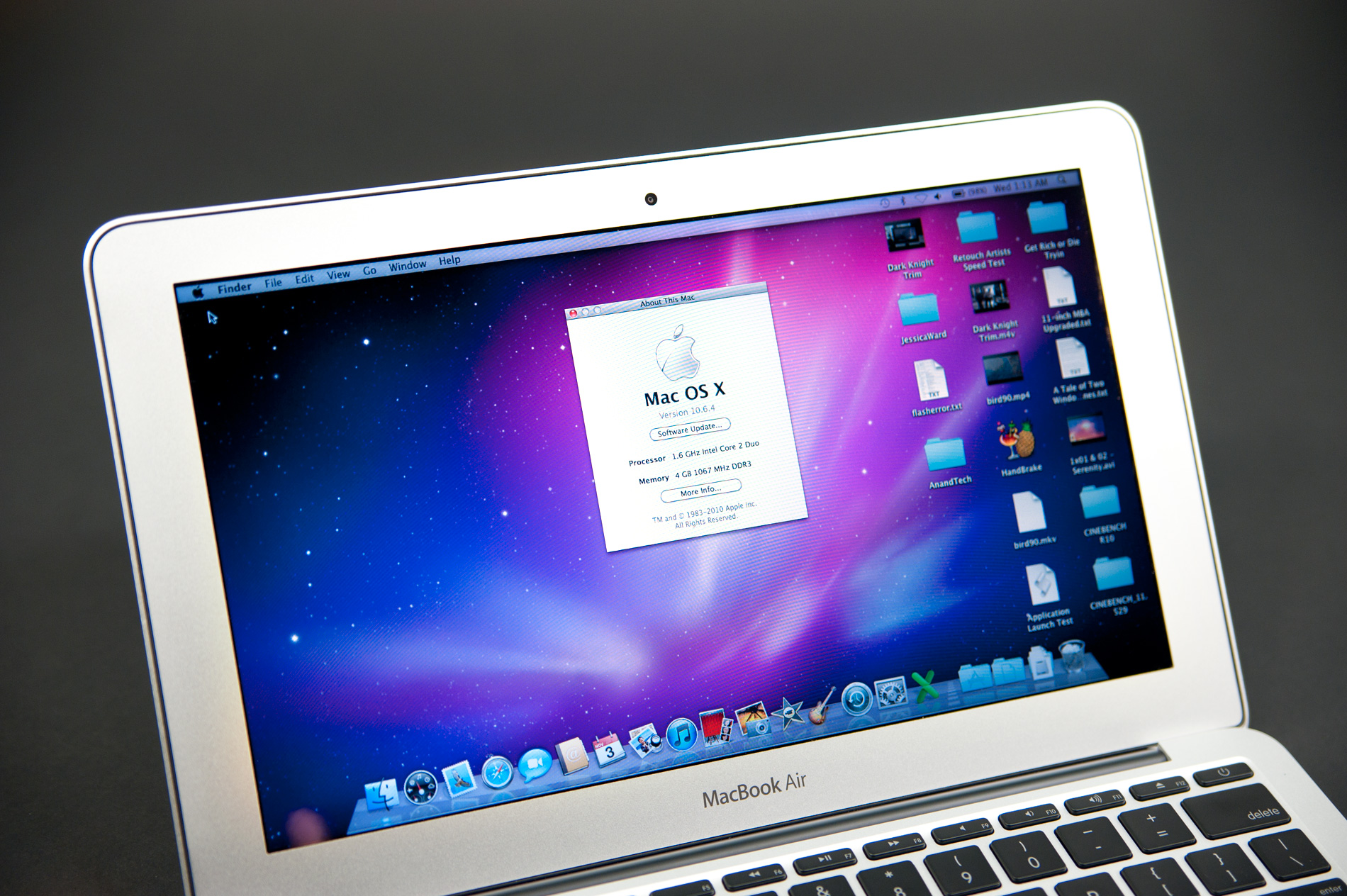
Last month we looked at Apple’s new 11-inch and 13-inch MacBook Airs. I concluded the 11-inch was the pinnacle of portability, delivering the weight and form factor of a netbook but without the drive-you-crazy performance of an Atom. The 13-inch was more of a regular, get-your-work done notebook - just in a very thin and very light chassis. I liked carrying the 11-inch MBA, but I liked working on the 13-inch. My typical workflow was simply too slow on the 1.4GHz 11-inch system.

Apple offers two potentially important upgrades for the 11-inch MacBook Air that could alleviate some of my concerns. For $100 more than its $999 starting price, you can outfit the 11 with 4GB of memory instead of 2GB. Light web browsing and writing don’t need more than 2GB, but start editing videos, photos or open way too many apps at once and you’ll quickly want more memory. If you’re planning on keeping your system for a while, the 4GB upgrade makes a lot of sense. And many Apple stores actually stock the upgraded 4GB model.


The next upgrade is a bit harder to swallow. The base 11-inch MacBook Air can’t be upgraded aside from memory. The $1199 model however, can. You get a 128GB SSD (up from 64GB) as well as the option to pay $100 for a 1.6GHz Core 2 Duo.

Normally 200MHz isn’t much to write home about, especially not for $300 more than the standard 11. However, 200MHz is a 14% increase in clock speed compared to the base model. In applications that are CPU bound, you may see close to that percentage in improved performance. The magic number for feeling a performance increase is 10%. Anything below that is tough to feel in real world use, but anything at or above that 10% mark usually feels quicker.

MacBook Air Spec Comparison
  11-inch Upgraded 11-inch 13-inch
CPU Intel Core 2 Duo 1.4GHz Intel Core 2 Duo 1.6GHz Intel Core 2 Duo 1.86GHz (2.13GHz optional)
Memory 2GB DDR3-1066 soldered on-board 4GB DDR3-1066 soldered on-board 2GB DDR3-1066 soldered on-board (4GB optional)
GPU NVIDIA GeForce 320M NVIDIA GeForce 320M NVIDIA GeForce 320M
Storage 64GB SSD 128GB SSD 128GB SSD (256GB optional)
Connectivity 802.11a/b/g/n Bluetooth 2.1 + EDR 802.11a/b/g/n Bluetooth 2.1 + EDR 802.11a/b/g/n Bluetooth 2.1 + EDR
Battery Capacity 35 Whr 35 Whr 50 Whr
Dimensions 11.8 " x 7.56 " x 0.11 - 0.68"
(29.95 cm x 19.2 cm x 0.3 - 1.7 cm)
11.8 " x 7.56 " x 0.11 - 0.68"
(29.95 cm x 19.2 cm x 0.3 - 1.7 cm)
12.8 " x 8.94 " x 0.11 - 0.68"
(32.5 cm x 22.7 cm x 0.3 - 1.7 cm)
Weight 2.3 lbs (1.06 kg) 2.3 lbs (1.06 kg) 2.9 lbs (1.32 kg)
Price $999 $1399 $1299

Combine the two upgrades and you’ve got a fairly expensive MacBook Air ($1399 if you’re keeping score). But if you want the portability of the 11 and are looking to get as much performance as possible, it’s your only option.


Luckily we happened to come across such a system. And we didn’t hesitate to test it.

Saturday, May 28, 2011

The 27-inch Apple iMac Review (2011)

A year ago I tried the notebook as a desktop experiment. The first Arrandale MacBook Pros hit the market and I thought, why not give two cores and four threads a try. I gave it a try for less than a day before having to switch back to the Mac Pro.

Try number two came earlier this year, with the Sandy Bridge MacBook Pro. Twice as many cores and much faster ones at that seemed to be a better recipe for success. Indeed they were. I switched from an 8-core Mac Pro to a 4-core Sandy Bridge MacBook Pro and have stuck with it for two months now.


By the end of this month alone I will have been in the air for 90 hours. Normally I'd have to frantically copy articles, benchmarks, notes and other important documents between machines before I left home for my next flight. Being able to pull an all-nighter testing, grab my notebook and head to the airport without worrying whether or not I forgot to copy something over is pretty sweet.

Regrets? I do have a few.

First, this thing isn't quiet. While my Mac Pro had beefy heatsinks and fans that spun so slowly you could count their fins, the MacBook Pro is a thermally constrained platform. Correction, it's a thermally constrained platform that's always running way too hot. It doesn't matter if the display lid is open or closed, my fans are always annoyingly audible. A lot of this has to do with my workload, I just always have things open that keep the CPU just busy enough that the fans need to work harder. It's frustrating.

Next is GPU performance. I was an early adopter of a multi-monitor setup, but ever since 30-inch displays hit the market I went back to a single display. I never really used the second display enough to justify its existence, it just made me less productive given my workload (I'm more efficient if everything I need is on a single physical screen vs. darting my eyes between two displays). The only complaints I had about 30-inch displays were unimpressive pixel density and a large desktop footprint. The new 27-inch panels started to address those concerns for me so I made the switch last year.

Despite having the upgraded AMD Radeon HD 6750M with 1GB of dedicated GDDR5, the 15-inch

MacBook Pro just isn't fast enough to drive the 2560 x 1440 external display when playing most modern games. Even Portal 2 slows down a bit if I'm looking through a portal. Not to mention that the discrete GPU running full tilt causes temperatures to hit their highest and the fans to really spin. I have other machines for gaming and my work computer is mostly for work so this isn't a deal breaker, but it's definitely annoying.
Third, and this is more an issue with Apple's software and not the MacBook Pro hardware, there's still no Quick Sync support in iMovie. As a result all of my video encoding is done on four Sandy Bridge cores instead of eight Nehalem cores in my old Mac Pro. Hmph.

I have other complaints like the sad state of full disk encryption under OS X today since I'm more paranoid about physically losing my data with a notebook. Apple still doesn't offer any support for SSDs with real time hardware encryption so I'm left physically segmenting my data and waiting for Lion. Oh and there aren't enough USB ports. Despite my issues and other than gaming/video encoding, performance isn't an issue. Sandy Bridge is quick and my overall experience is generally quicker than the Mac Pro. Other than video encoding I don't run any heavily threaded applications so a quad-core CPU is the sweet spot for my workload.

Does the added portability make up for the downsides? When I'm traveling a lot - absolutely. It's just so much more convenient. In between trips? Well, that's when it's a lot easier to tempt me back to a desktop.
A couple of weeks ago, this arrived:


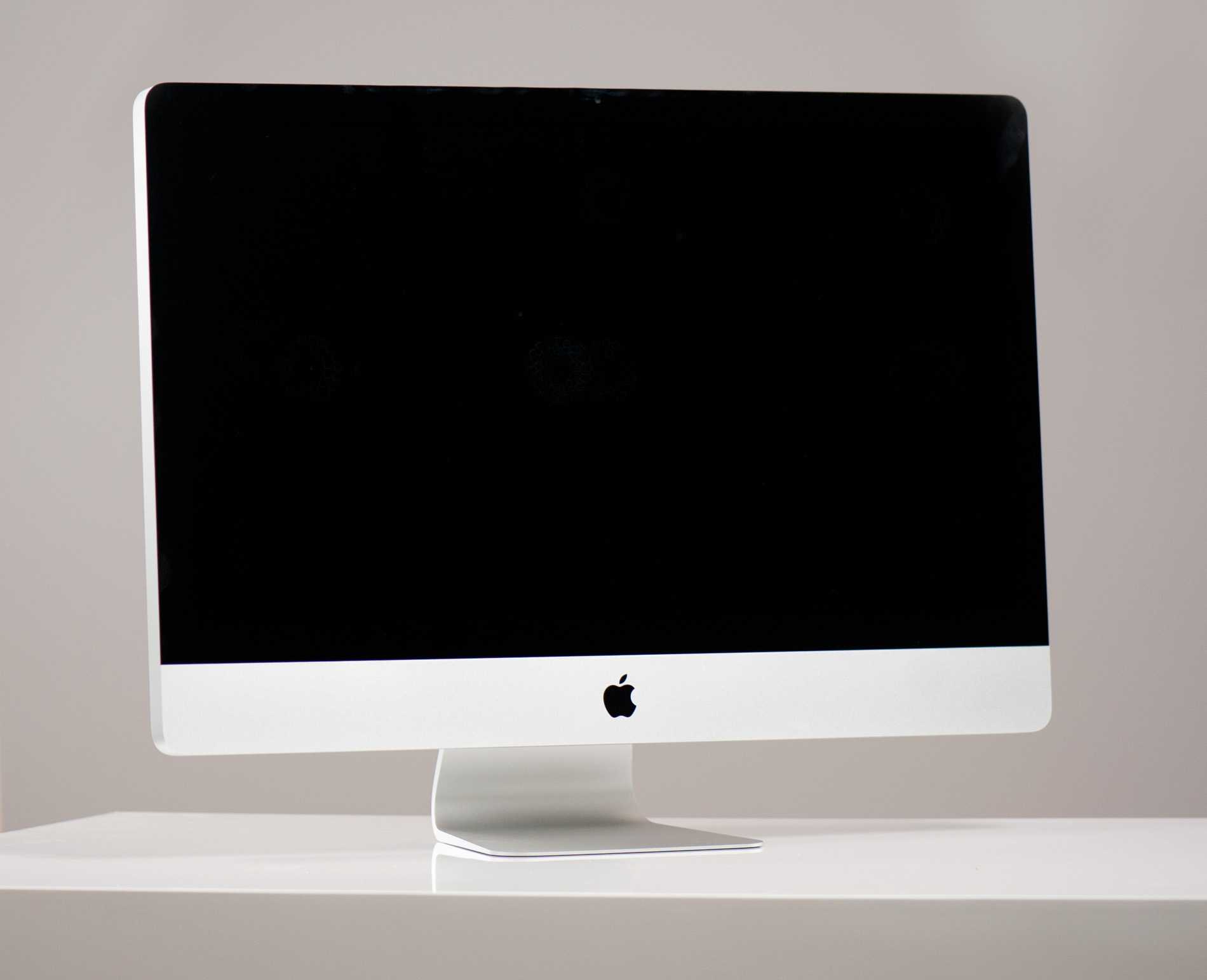
It's the new 2011 upgraded 27-inch iMac. More or less it's the 2011 MacBook Pro mated to a 27-inch LED backlit Cinema Display. It's basically my setup but in an all-in-one desktop.

I never liked the iMac. I understood the appeal, but it wasn't for me. The CPUs and GPUs weren't fast enough, there weren't enough drive bays and the display was always worse than what I already had on my desk. However the same series of events that allowed me to dump the Mac Pro and use a Sandy Bridge MacBook Pro have made the iMac that much more interesting.

Moore's Law (or more specifically, hundreds of super smart process and chip engineers) have more or less solved the performance problem in these integrated machines. We've been on the longest run I can remember of software being outpaced by hardware and as a result machines like the iMac look a whole lot more powerful than they did just a few years ago.

SSDs and very high capacity mechanical drives fixed the storage problem, while the advent of 27-inch high resolution LCD panels fixed the display problem. The new iMac can easily be a real workstation for users today, when in the past it was more of a machine you'd give to your parents. To be honest, after using it for a while, I actually like the new iMac.

Two Models

Apple offers two iMacs: a 21.5-inch and a 27-inch model. Just like Apple's notebook strategy, the iMacs are fairly similar in terms of components but primarily differ in screen size/resolution. Of course the larger the screen the higher the likelihood that you'll be doing more with your iMac and thus Apple offers some faster component options in the 27-inch models.
At each screen size Apple has two pre-configured versions: a base and an upgraded model. The upgraded models typically have more upgrades available to them (faster CPUs, faster GPUs, etc...) while the base models are more fixed in their configuration (memory and storage are mostly configurable regardless of system).


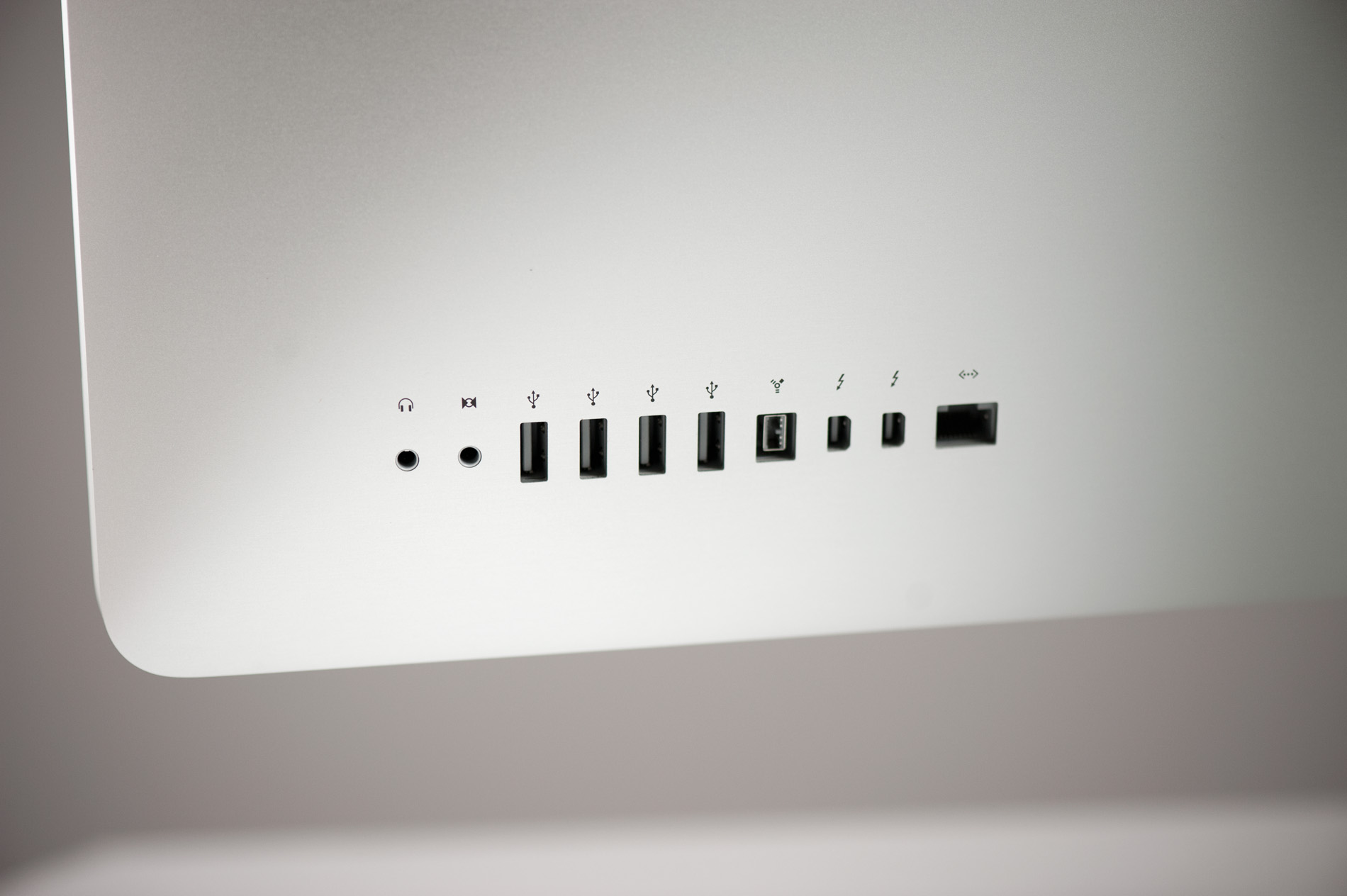
Apple sent us the high end 27-inch iMac, which other than its larger display looks like a 21.5-inch iMac with one extra Thunderbolt port. Both systems have four USB 2.0 ports (no USB 3.0 until the Ivy Bridge iMac next summer), audio line in/out, one FireWire 800 port and a Gigabit Ethernet port. There's also integrated WiFi (802.11n) and Bluetooth.

As always, Apple's PC competitors typically win the spec game - particularly when it comes to memory and storage:


All-in-One Comparison
  Apple iMac 21.5-inch Dell Inspiron 2305 HP TouchSmart 610xt Apple iMac 27-inch
CPU Intel Core i5-2400S (2.5GHz quad-core) AMD Athlon II X4 610e (2.3GHz quad-core) Intel Core i5-2400 (3.1GHz, quad-core) Intel Core i5-2500S (2.7GHz quad-core)
GPU AMD Radeon HD 6750M (512MB) ATI Radeon HD 5470 (1GB) AMD Radeon HD 5570 (1GB) AMD Radeon HD 6770M (512MB)
RAM 4GB DDR3-1333 8GB DDR3-1333 6GB DDR3-1066 4GB DDR3-1333
Storage 500GB 7200RPM HDD 1TB 7200RPM HDD 1TB 7200RPM HDD 1TB 7200RPM HDD
Optical Drive 8x SuperDrive (DVD±R DL/DVD±RW/CD-RW) Blu-ray Combo Drive (BD-R, DVD±RW) Blu-ray player & SuperMulti DVD burner 8x SuperDrive (DVD±R DL/DVD±RW/CD-RW)
Display 21.5-inch 1920 x 1080 23-inch 1920 x 1080 23-inch touch enabled 1920 x 1080 27-inch 2560 x 1440
Price $1199 $1149 $1219 $1699


With the exception of the entry level 21.5-inch iMac, Apple always gives you 4GB of RAM (2 x 2GB DDR3-1333) SO-DIMMs and a 1TB HDD. The entry level iMac keeps the 4GB of memory but drops you down to a 500GB HDD.

Dell is significantly slower on the CPU and GPU side, while HP gives you a faster CPU and somewhat slower GPU. Both Dell and HP give you 50 - 100% more memory and twice the HDD capacity for roughly the same cost as Apple's 21.5-inch iMac. The big advantage however is that HP offers even cheaper machines, the TouchSmart line starts at $629.99.

Apple has never been a value player and the fact that the entry level iMac is at least within the same range as a comparable HP or Dell is pretty impressive. The 27-inch iMac is tempting as the display alone is worth $999. For the base 27-inch iMac that means you get a Sandy Bridge Mac integrated for only an additional $699. That's downright Dell pricing.

The big issue with all-in-ones of course is the lack of upgradability. It's arguably even more of an issue when your all-in-one has a pretty sweet 27-inch 2560 x 1440 panel. I've always kept displays through several upgrades, but you can't really do that with an iMac. I'm not really sure how to come to terms with that aspect of what Apple is offering here.

The smartphone and tablet revolution has finally kicked the display makers into high gear. I'm hoping it's a trend and not a fad and that we will see aggressive roadmaps for larger panels as well. So if replacing your 27-inch panel in a couple of years isn't a big deal then the iMac upgrade path isn't quite as painful. Either way, whoever gets your hand-me-downs will get a pretty sweet display.

17-inch Apple MacBook Pro MC226B/A Refurbished Laptop


The 17-inch Apple MacBook Pro MC226B/A Refurbished Laptop is equipped with a powerful 2.8 GHz Intel® Core™2 Duo Processor T9600, which runs Mac OS X v10.6 Snow Leopard with smooth efficiency. This portable powerhouse comes with 4GB of memory (expandable to 8GB) and a huge 500GB hard drive, making it suitable for demanding media creation workflows.

One look at the beautiful 17" 1920 x 1080 resolution LED-backlit display and you'll know the Apple MacBook Pro is a premium machine aimed squarely at professionals who work with High Definition video, large image files, 3D graphics and lots of windows! The display is powered by your choice of either the battery-sipping NVIDIA GeForce 9400M GPU or the massively powerful GeForce 9600M GT with 512MB of dedicated GDDR3 memory - manually selectable in OS X.

Speaking of battery life, the Apple MacBook Pro MC226BA incorporates an innovative built-in lithium-polymer battery with a generous 95 watt-hour capacity. This powers the notebook for up to 8 hours on a single charge, while hugely extending the lifespan of the battery to around 1000 recharge cycles thanks to Adaptive Charging and advanced lithium-polymer chemistry.

But perhaps the most impressive feature of the 17-inch Apple MacBook Pro is its incredible portability. Weighing in at 2.99 kg and measuring just 2.5 cm at the thickest point, this laptop offers unprecedented power in a portable package - making it a dream to use in the field.

Of course the Apple MacBook Pro MC226B/A Refurbished Laptop is also equipped with the latest Wireless N WiFi and Bluetooth 2.1 + EDR, Gigabit Ethernet, an ExpressCard/34 slot for expansion, an illuminated keyboard, powerful built-in speakers, an iSight camera with microphone, and much more that cannot be listed here. In short, this is a professional notebook in every sense of the word!

This refurbished laptop has been professionally checked, tested and repackaged. It comes with a reassuring 12-month warranty and offers fantastic savings over the 'as new' price.
 
General Information
Processor Intel® Core™2 Duo Processor T9600
- 2.80 GHz
- 1066 MHz FSB
- 6 MB L2 cache
Operating System Mac OS X v10.6 Snow Leopard
RAM 4 GB 1066 MHz DDR3 memory
Expandable to 8 GB
Graphics card NVIDIA GeForce 9600M GT discrete graphics processor with 512 MB of GDDR3 memory
NVIDIA GeForce 9400M graphics processor with 256 MB DDR3 SDRAM shared with main memory (user-selectable to extend battery life)
Screen type LCD widescreen
Screen resolution 1920 x 1200 (Full HD)
Screen size 17-inch
Screen features LED backlight
Glossy
16:10 aspect ratio
Hard drive 500 GB SATA
5400 rpm
Optical disk drive 8x slot-loading SuperDrive (DVD±R DL/DVD±RW/CD-RW)
Memory card reader No
USB 3 x USB 2.0
FireWire 1 x FireWire 800
Modem/Ethernet 10/100/1000BASE-T Gigabit Ethernet (1 x RJ-45 connector)
WiFi AirPort Extreme Wi-Fi
IEEE 802.11n draft specification
Also IEEE 802.11a/b/g compatible
Bluetooth Bluetooth 2.1 + EDR (Enhanced Data Rate)
Video interface Mini DisplayPort
DVI, VGA, and dual-link DVI output possible with optional adaptors (not included)
Audio interface Combined optical digital audio input/audio line in (minijack)
Combined optical digital audio output/audio line out (minijack)
TV output No
Extension card slot 1 x ExpressCard/34 slot
Sound Built-in stereo speakers
Built-in omnidirectional microphone
Webcam Built-in iSight camera
Keyboard & Mouse Backlit full-size keyboard
Multi-Touch trackpad with support for two-finger scrolling, pinch, rotate, swipe, three-finger swipe, four-finger swipe, tap, double-tap, drag
Battery Built-in 95-watt-hour lithium-polymer battery
Additional features Precision aluminium unibody construction
MagSafe power port
Kensington lock slot
Highly recyclable aluminium and glass enclosure
Mercury-free display
Arsenic-free display glass
BFR-free
PVC-free internal cables
Reduced packaging volume
Meets ENERGY STAR Version 5.0 requirements
Rated EPEAT Gold
Accessories included 85-watt MagSafe power adaptor with cable management, AC wall plug and power cord, display cleaning cloth, install/restore DVDs, printed and electronic documentation
Software included iLife ''''09 (includes iPhoto, iMovie, iDVD, iWeb, GarageBand)
iTunes, Time Machine, Quick Look, Spaces, Spotlight, Dashboard, Mail, iChat, Safari, Address Book, QuickTime, iCal, DVD Player, Photo Booth, Front Row, Xcode Developer Tools
Size 25.0 x 393 x 267 mm (H x W x D)
Weight 2.99 kg

MacBook Air Rumor Apple Builds ARM-Powered

A Japanese website claims Apple is testing an ARM-based MacBook Air powered by the same A5 processor as the wildly popular iPad 2.

According to Macotakara, Cupertino and Quanta Computer built a specially designed Thunderbolt-equipped Air to test the low-power chip.

Rumor: Apple builds ARM-powered MacBook Air
"[The] source who saw live A5 MacBook Air [said the] test machine performed better than expected," read a translated version of the article quoted by AppleInsider. 

Interestingly enough, the report conceded it "wasn't clear" if the prototype Air was running Apple's mobile iOS or the standard desktop Mac OS X operating system.

It should be noted that the above-mentioned rumor comes just a few weeks after SemiAccurate's Charlie Demerjian reported future Apple laptops would be powered by RISC-based ARM chips, rather than Intel x86 processors.

"Apple is moving the laptop line, and presumably desktops too, to ARM based chips as soon as possible... It is a done deal, Intel is out, and Apple chips are in. The only question left is if they will use their own core, a Samsung core, or the generic ARM black box."


Although many journalists and analysts have expressed skepticism over the possibility of Cupertino ditching x86 architecture for ARM, prominent Silicon Valley chip expert David Kanter believes Apple could indeed be planning an enigmatic hybrid device.

"While Apple will not switch from ARM to x86 in the next couple of years, there could be shades of the truth in the rumors. A more plausible scenario is that Apple is planning some sort of hybrid system," Kanter wrote on Real World Tech.  


"There are a number of ways that putting ARM near a computer could be quite interesting and valuable.For example, Apple could include an ARM core in future notebooks for 'instant-on' web browsing while the computer is booting - something done in certain Dell and HP models. An extension of that idea would be an update to OS X with an iOS emulator and maybe a co-processor for future hardware. 


"[Remember], unifying Apple's three major platforms - computers, tablets and phones - would make it far easier for developers to target Apple platforms. In some ways, this might be the most sensible, since expanding the iOS installed base would help Apple create a more attractive market for developers compared to Android and could facilitate tying the iPhone to other Mac products."

Saturday, May 14, 2011

Apple iMac (21.5-Inch, 2011 Version) Review

Don't you just hate overachievers? Like that good-looking, star athlete in high school, the Apple iMac, year after year, outshines all the other all-in-one (AIO) desktops—Windows or Mac—in its class. It gracefully sprints ahead in performance, and it looks good in just about any situation. (Grumble, grumble.)

Still, we can't help but feel respect for, rather than jealousy of, this AIO computer. This time around, the iMac proves itself the prom king of AIOs, with stronger CPU and graphics power, along with the new Thunderbolt port that promises high-speed data transfer. We'd like to see some additional entertainment features to pair with the iMac's gorgeous screen, but we recommend this AIO to anyone focused on productivity and performance, and willing to work within Mac OS X.
The body of the 21.5-inch iMac is about 1.5 inches thick.
Apple iMac 2011 side view
With this first 2011 update of the iMac, each member of the new iMac line gets a strong boost in processor and graphics above 2010's machines. Apple is offering two 21.5-inch models. The $1,199 base model (our test unit) packs in a 2011-model 2.5GHz quad-core Intel Core i5 processor (from the new generation of Intel chips known as "Sandy Bridge"), a 500GB hard drive, and an AMD Radeon HD 6750M graphics card with 512MB of discrete memory. For $300 more, you can upgrade to a 2.7GHz Intel Core i5 processor (also a quad-core chip), a 1TB hard drive, and AMD Radeon HD 6770M graphics with the same dollop of memory.
Apple is also offering two 27-inch models: a $1,699 version with the same specs as the higher-end 21.5-inch iMac, and, for another $300, a beefed-up model that features a 3.1GHz Intel Core i5 quad-core CPU, a 1TB hard drive, and AMD Radeon HD 6970M graphics with 1GB of dedicated memory. You can upgrade various components of all of the models at the time of purchase...for a price, of course.

Design & Features

While the guts of the iMac have gotten a compete overhaul, the exterior is almost exactly the same as the previous version. But that's certainly not a bad thing. Like all of Apple’s products, the  iMac’s design is sleek and minimalist. It's encased in a single-piece aluminum enclosure much like the ones that the Apple MacBook Pro and Apple Mac Mini lines also sport, giving the whole Mac family a unified look.

On the right side of the screen is an SD-card reader (which also supports the SDXC format) and a slot-loading optical drive. Unfortunately, the latter is not a Blu-ray reader, something that Apple has yet to feature on any of its systems. That's a shame, with this beautiful screen. Other than the power button, which sits almost invisibly on the lower-back-left side of the body, and a little patch of ports, you won't find any other features to interrupt the iMac's mostly bare rear panel.
 
Apple iMac rear

On the rear of the iMac, you'll find a strip of ports, the power connection, a power cord, an Apple logo...and that's about it.
 
The super-spare design helps draw your eyes to the gorgeous 21.5-inch LCD, which is glossy and LED-backlit. Its wide-screen aspect ratio (16-to-9) and 1,920x1,080 native resolution make for an impressive HD viewing experience. Like all glossy screens, this one is prone to some glare off of ambient lighting, but the colors represent nicely, and, unsurprisingly, we noted no motion blur when viewing video. However, considering this beautiful screen, notably absent from the iMac—apart from the Blu-ray player—is an HDMI port. That would be useful for connecting a gaming console and making dual use of the display.
One new feature that comes to the iMac with this generation is a built-in ambient-light sensor. (It lives, almost invisibly, on the top strip of the screen bezel, next to the Webcam lens.) This sensor governs the brightness of the screen depending on the brightness of the room you are in. We applaud Apple for bringing this feature, which has been on its MacBooks for a few generations, to its desktops. (You'll know the value of this feature if you've ever tried looking at a bright screen in a dark room. Talk about an instant headache.)

The Magic Mouse features laptop-touchpad-like features such as finger swiping.
Apple Magic Mouse
The iMac’s body sits nicely on an aluminum base that provides a stable anchor for the rest of the body; it's the very same base as on the previous model. The screen is tiltable, and the adjustment motion is refined and smooth. There's no left/right swivel adjustment (apart from moving the whole machine, base and all), but Apple claims that its iMacs have a 178-degree off-center viewing angle, and that minimizes the need for fine swivel adjustments. (Based on our testing, we believe it; we noted no appreciable deterioration of color or viewability when we looked at both video and still images far off center.) Plus, the iMac is light enough to drag around your desk, if need be.

The iMac ships with either Apple's Magic Mouse or the company's Magic Trackpad.

You previously had to pay an extra $69 to get the Magic Trackpad separately; now, you can get it bundled with your iMac instead of the Magic Mouse, for no additional charge. The Magic Mouse works almost like the touch pad of a laptop. Looking like a tiny spaceship, the Magic Mouse has no buttons—or rather, like its MacBook touch-pad counterpart, it’s one big button. (Click here for our full review of the Apple Magic Mouse.) The Magic Trackpad, on the other hand, actually is the touch pad of a laptop, lifted off and made a free-standing peripheral. If you've used the touch pad on a MacBook Pro, you'll be very familiar with how this unique pointer works. (Click here for our full review of the Magic Trackpad.)
You can now choose to have your iMac ship with a

Magic Trackpad instead of a Magic Mouse.
Apple Magic TrackpadAlong with the Magic Mouse, the iMac also ships with a wireless Bluetooth keyboard that adheres nicely to the Apple minimalist aesthetic. About three-quarters the size of a traditional keyboard (partly thanks to the elimination of the numeric keypad), it’s almost completely flat except for a rounded area in the back that holds the batteries and props up the keyboard slightly in the rear.

Despite its diminutive body, we didn’t find the keyboard hard to type on. Like the mouse, it bears a striking resemblance to Apple’s laptops, with the Chiclet-style keys rising only slightly from the body of the keyboard. It's tiny and may take some getting used to, but if you're an Apple fan, it will definitely fit your style.

 
Apple Keyboard side view

The super-thin keyboard comes with built-in Bluetooth and requires two AA batteries.
 
Apple's new 720p FaceTime HD camera lives in the middle of the top of the screen bezel, along with a camera-indicator light, which lights up to warn you when the camera is on. The FaceTime camera features three times the resolution of the iSight camera that came on previous iMacs. We first used the FaceTime camera when it made its debut on the latest line of MacBook Pro laptops, and we were immediately impressed with it. This could have been one of those improvements that might not matter to the average consumer, but we think the dramatic difference won't go unnoticed. As far as using the camera, we noticed no lag, and it performed well even in a dimly lit office. You can make FaceTime calls to other Mac devices that have a camera and the FaceTime app installed. (You can download the app from the Mac App Store for 99 cents; it also comes loaded for free on new iMacs and MacBooks.)

The built-in speakers are located on the right and left side of the underbelly of the bezel. They deliver a loud, bass-filled sound that could easily fill a small room. (As a matter of fact, our neighbor in our office asked if we were having a dance party in our office during our testing.) You'll want to consider hooking up some external speakers, though, if you plan on pumping music from the iMac to entertain at a party, as it doesn't quite have the sound to fill a large room

Connectivity

On the back-left side of the body is a single-file line of ports. From left, they are audio-in and -out jacks, four USB 2.0 ports, a FireWire port, a Thunderbolt connector (don't worry, we'll get to that probably unfamiliar one in a minute), and an Ethernet jack. In the middle, behind the base, is the power connection. The power cord snakes out through an opening in the base.
 
Apple iMac 2011 ports

The iMac's ports include, from left: headphone and microphone jacks, four USB 2.0
ports, a FireWire 800 port, the new Thunderbolt port, and an Ethernet jack.
 
These iMacs are the first desktops to feature the Thunderbolt port, which replaces the mini-DisplayPort connector from previous iMacs. Thunderbolt is based on Intel's Light Peak technology, which supports both high-performance peripherals and high-resolution displays. You get one Thunderbolt port on the 21.5-inch iMac, and two on the 27-inch model, to support additional peripherals. (This means, for example, you can hook up two additional displays to the 27-inch iMac.) Apple claims the technology can provide data transfer at 20 times the speed of a USB 2.0 port, and, from what we saw during an Apple-administered demonstration the morning of this computer's release, we believe it. (We'd have tested it ourselves, but no cable or device was available for us to lug back to our labs. Estimates are, though, that Thunderbolt cables and compatible devices will be available in the late spring or early summer.)

The Thunderbolt port doesn't just work with Thunderbolt-equipped peripherals; it's also compatible with USB 2.0 and 3.0, FireWire, Gigabit Ethernet, VGA, DVI, and HDMI connectors via an adapter. (Adapters are expected to be available for each connection type soon. Keep in mind, though, that with the adapters, you’ll still be running at the speed of your original connection.) A final aspect of it is a serious flashback: The Thunderbolt port also allows you to daisy-chain up to six devices off of it, much like old-school SCSI.

iMac Power Cord

The iMac's power cord runs through this gap in the stand.
 

Performance

How We Test Desktops bugWhile the outside of the latest iMacs may look identical to the previous generation, the inside has seen a wholesale component revamp, with more powerful graphics and CPUs. As we mentioned previously, our test unit was the base model of the line, built around a current-generation 2.5GHz Intel Core i5 CPU and an AMD Radeon HD 6750M graphics card with 512MB of memory. The Sandy Bridge processors have already wowed us on the Windows side, setting all kinds of speed records at low system price points. And with this kind of power now backing the iMac, this machine blew its predecessor—and most of the competition—straight off the test bench in our testing.

The first set of trials we ran tested the iMac's raw CPU performance. We started with our Cinebench 10 test, which stresses all the cores of a given processor in rendering a test image. The iMac scored 13,631, a 56 percent increase over the previous version of the 21.5-inch iMac. This number is also impressive next to comparable Windows-based AIOs. It bests the Gateway One ZX6951-53's score of 10,031, while it didn't quite measure up to the HP Omni 200 Quad's 14,658. (The HP Omni 200 was running a 2.8GHz Intel Core i5 processor, though, which we would expect to be a little faster than this iMac's CPU.)

Our next CPU-centric test was our iTunes Converstion Test, in which we encode 11 standard audio tracks from MP3 to AAC format. Here, the iMac's time of 2 minutes and 16 seconds to perform the test task beat the previous version's time by almost a full minute. It also handily beat the HP Omni 200 Quad and Gateway One ZX6951-53 by more than 20 seconds.
The new, more-powerful graphics in this line of iMacs also impressed us in our testing. With the previous version of the iMac line, Apple for the first time brought a dedicated graphics processor to its low-end iMac. This time, the trend toward better graphics continues with the AMD Radeon HD 6750M in our test machine. This bump up in graphics power prompted us to run one of our more intensive game tests on this machine in Boot Camp. We used the test game Far Cry 2, which has a built-in benchmark test; we achieved a frame rate of 29.4 frames per second (fps) on our 1,920x1,080 DirectX 10 run of the test. When we dropped the resolution to 1,680x1,050 (while keeping the rest of the graphics settings pushed to High), we got a more playable 32.6fps. (30fps is our typical threshhold for playability.)

What this tells us: You’ll likely have to dial back the resolution and graphics settings a fair bit in cutting-edge gaming titles, but this machine should make most current games playable. If gaming is a priority for you, though, we’d upgrade the system to one of the higher-end graphics-card options.
 
iMac FaceTime camera

The FaceTime camera, ambient light sensor, and camera-live indicator are located at the center-top of the bezel.
 
Overall video-playback performance was solid. We watched a DVD copy of The Bourne Identity; the film displayed crisp and clear, with no motion blur to be seen. (We would have loved to have watched a Blu-ray disc, but as we noted, alas, there's no support for that.) MOV video files that we shot on our inexpensive Canon point-and-shoot camera also played back without glitches.

While this kind of performance isn’t up to the same level you’ll find in an Apple Mac Pro tower or another high-end desktop, this system delivers plenty of CPU muscle for multitasking, as well as demanding tasks such as high-end image and HD video editing. Professional users will, of course, want to step up to one of the faster CPUs for the time that they’ll save in rendering, but for everyone else, even this low-end model’s CPU should be more than sufficient for just about all mainstream tasks.

Conclusion

The iMac comes bundled with the 10.6 version of the Mac OS X Snow Leopard operating system, as well as iLife ’11 (comprising the superb iPhoto, iMovie, iDVD, iWeb, and GarageBand applications). The latter is as good a starter set of media-centric programs as you'll find with any modern desktop computer. The iMac also comes with a one-year limited warranty and 90 days of toll-free phone support. (An extended AppleCare warranty will cover your system for two more years; it costs $169 extra, and that upcharge was not factored into the cost of our test unit.)

With a little new on the outside and a lot new on the inside, the 21.5-inch iMac continues to be our overall top pick for an all-in-one desktop computer. Dramatic improvements in CPU and graphics power send it hurtling to the front of the AIO pack, and its stylish design would fit perfectly in a living room as well as an office. Even though its improved graphics performance makes it a viable gaming machine, we'd like to see more entertainment features, such as an HDMI port or a Blu-ray drive. But as a productivity PC, the iMac is as powerful as it is beautiful.

Related Posts Plugin for WordPress, Blogger...
Powered by Blogger.